

Type an amount. Get paid.
Olympus Go is the merchant and agent app in the Olympus family. Enter an amount or ring up a catalogue, choose how your customer pays, and watch it confirm. It signs in with your existing Olympus Pay account, on the same accounts and platform.
Olympus Go is built for iPhone. Tap to Pay on iPhone is coming.
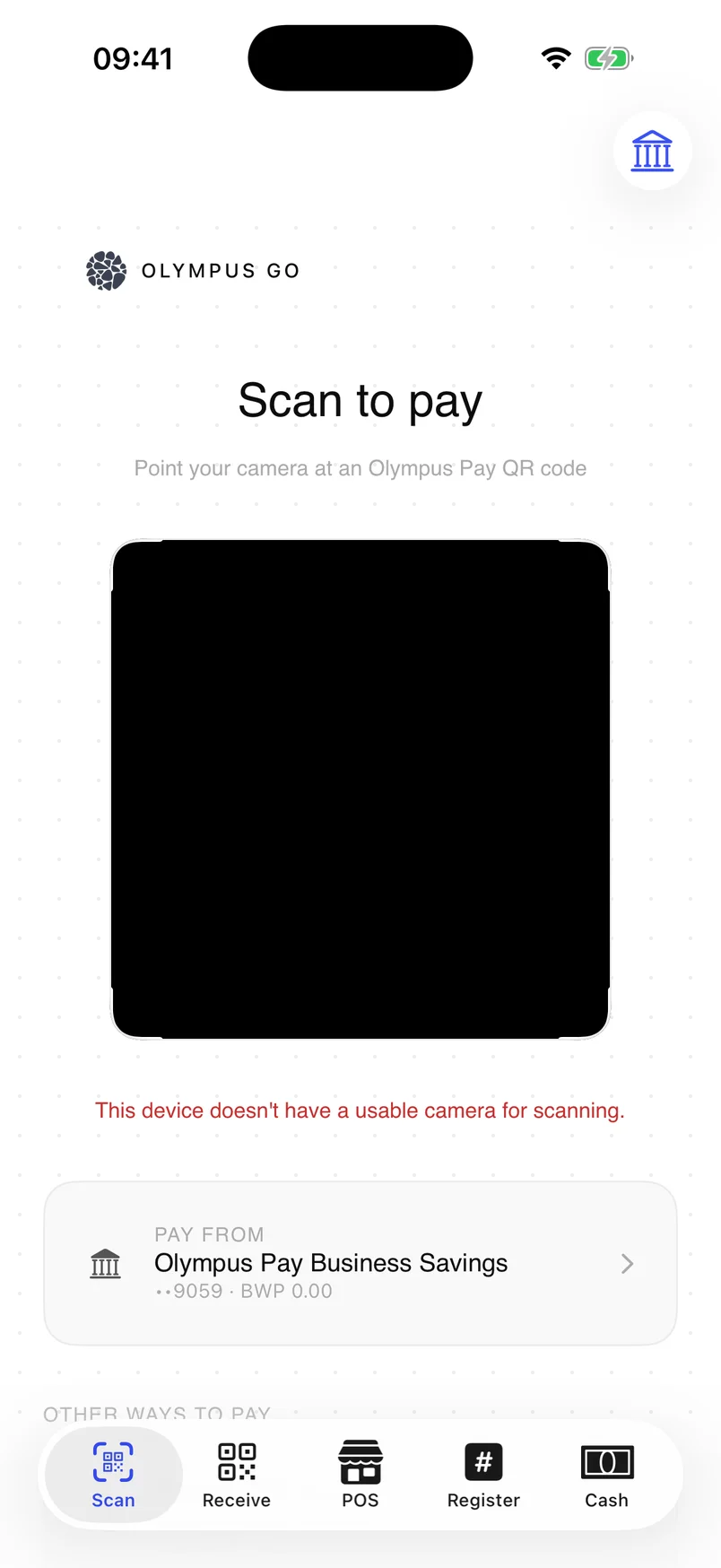
Scan to pay, from the Scan tab.

Your counter, in your pocket.
Take card, QR and mobile payments, ring up sales and serve customers with cash, all from an iPhone.
Inside the app.
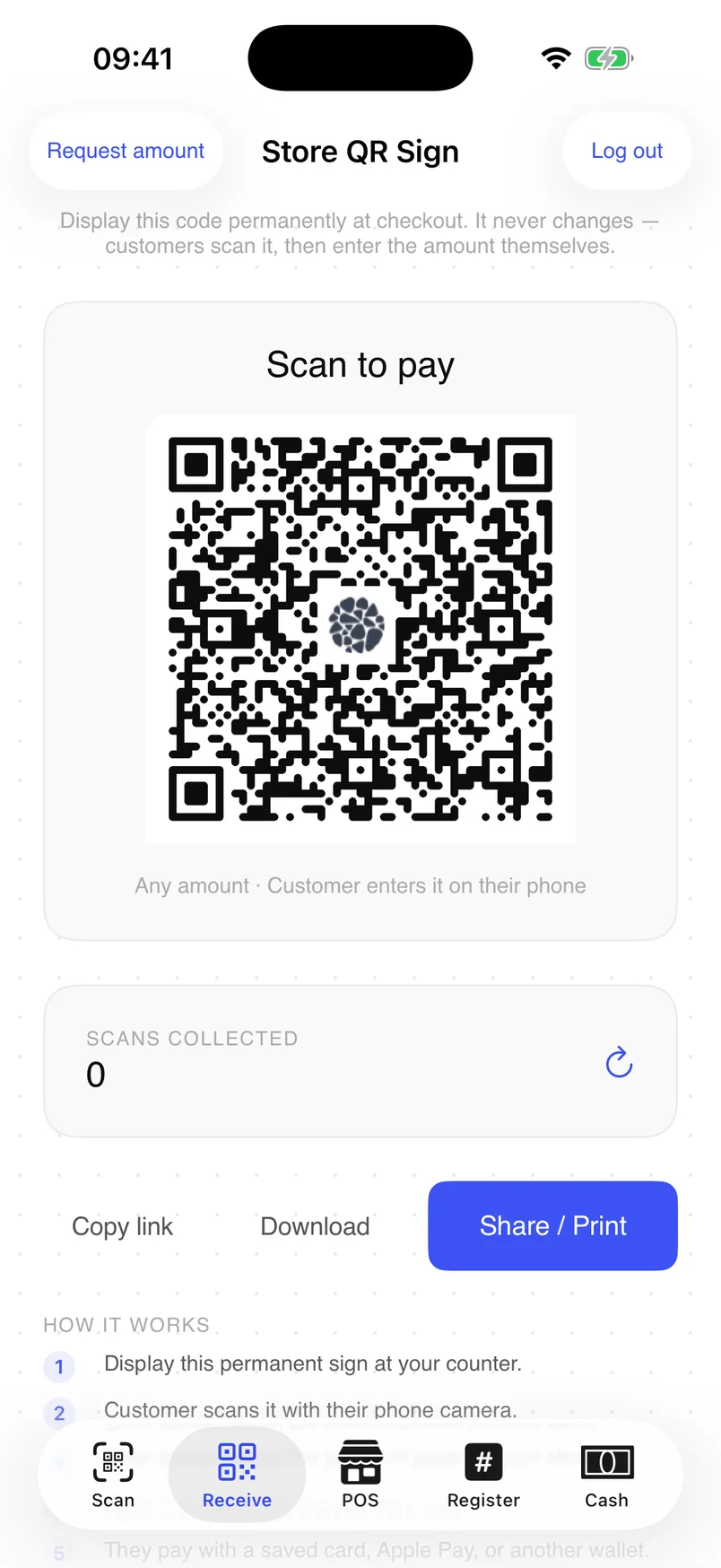
The five sections of Olympus Go.
Scan
Pay someone else’s Olympus code from your own balance. Reads an NFC sticker too.
Receive
A Store QR Sign to display at the counter. It never changes; the customer enters the amount.
POS
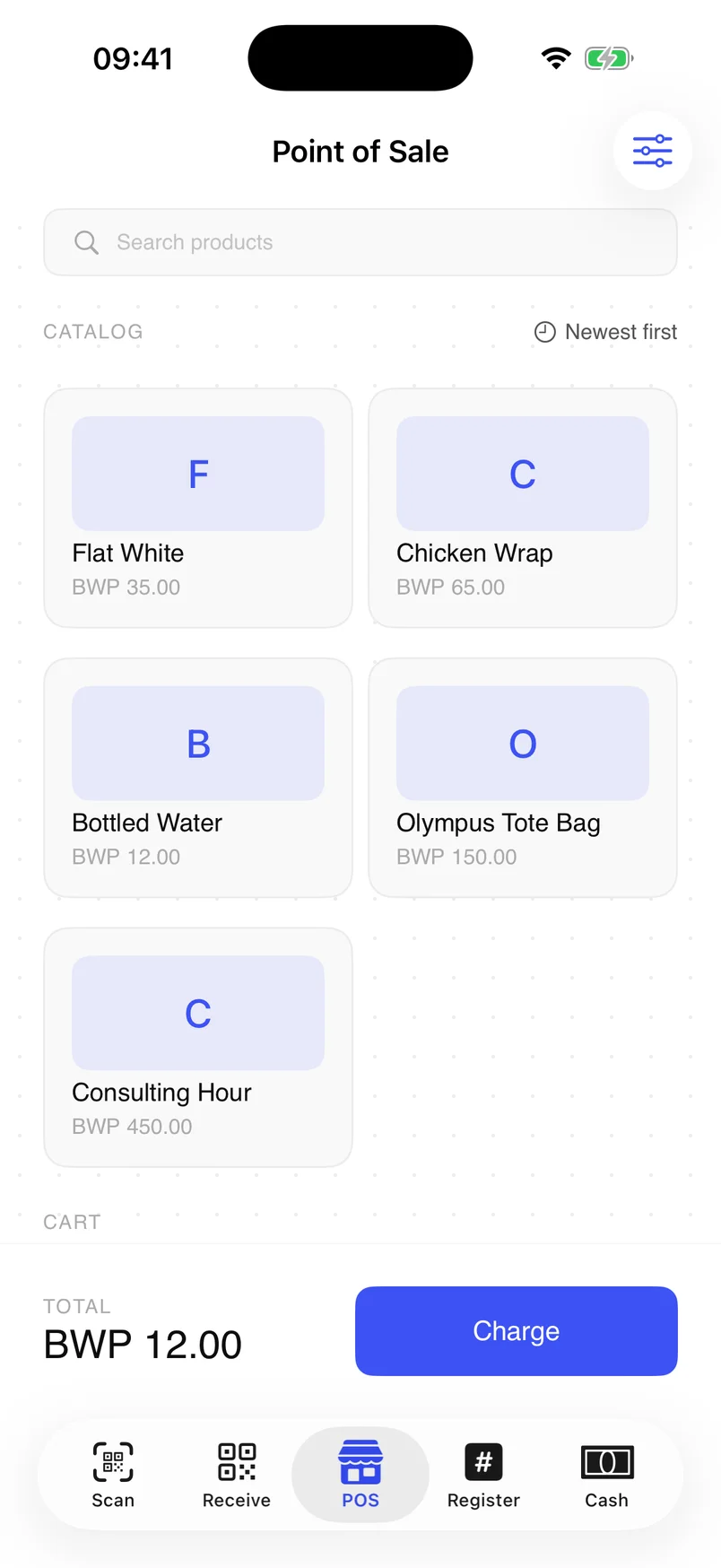
A product catalogue and cart, then choose how to collect the total.
Register
Type any amount on a keypad, then choose how to collect it.
Cash
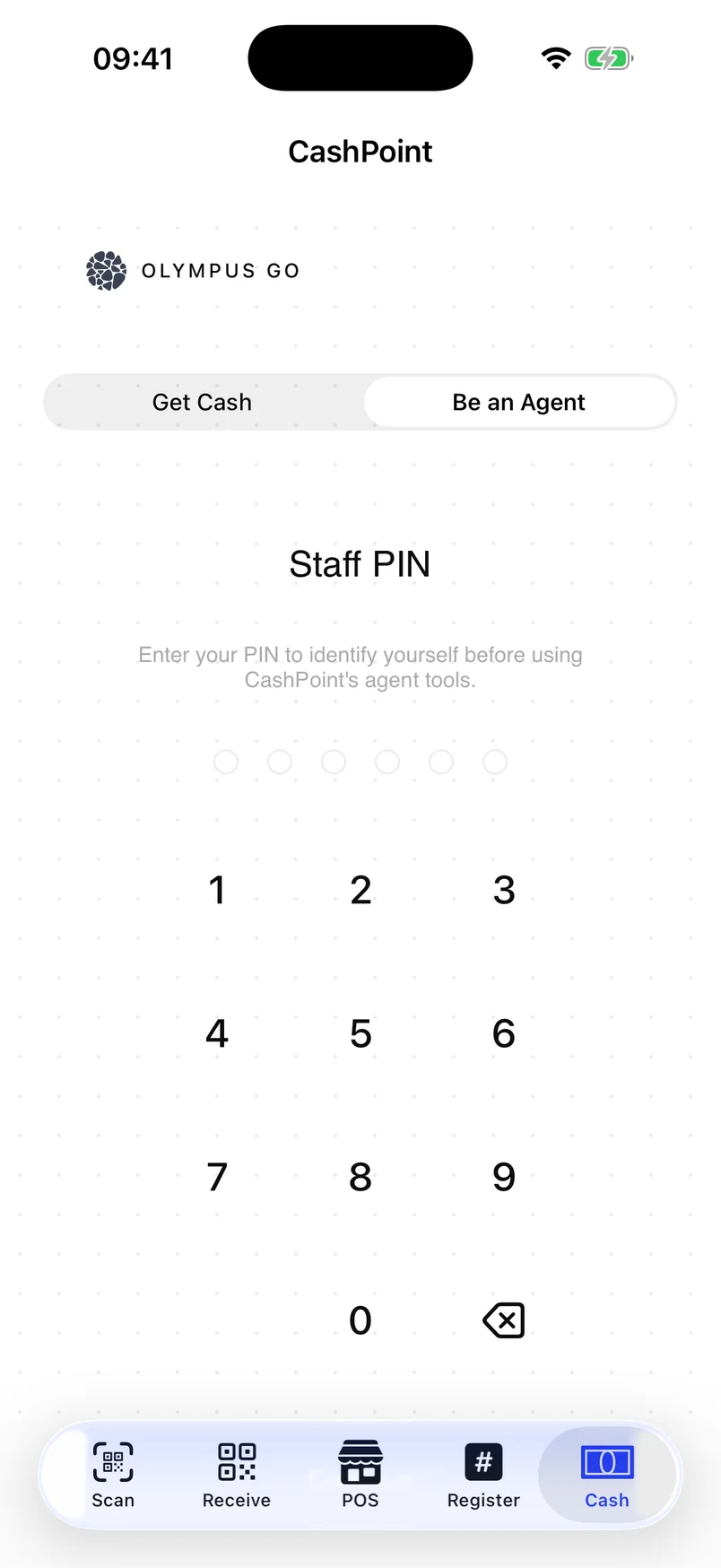
CashPoint: Get Cash, or Be an Agent.
Ways to collect payment.
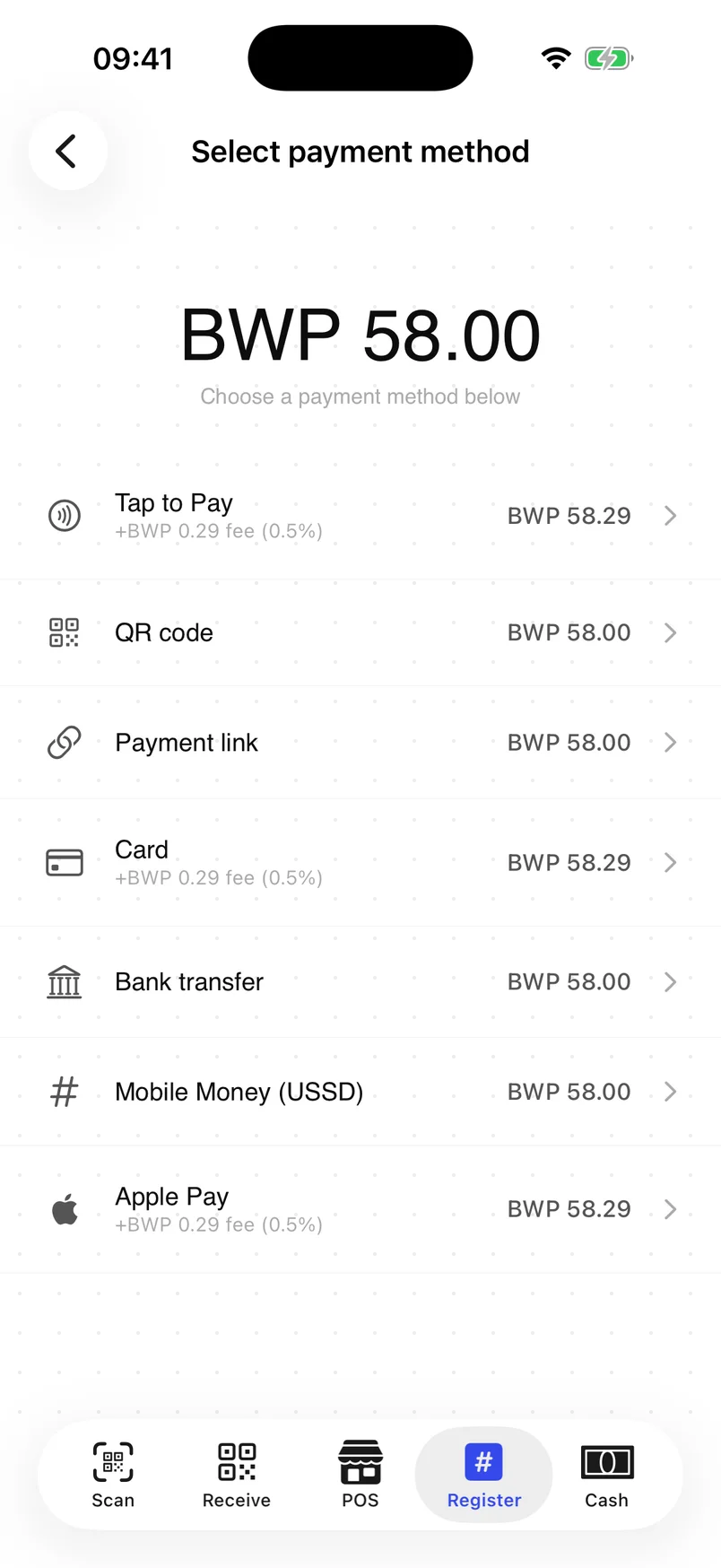
The methods a merchant sees after entering an amount.
What your customer does.
You enter the amount
On the Register keypad, or by ringing up the POS catalogue.
You choose the method
QR code, payment link, card, bank transfer or Apple Pay.
The customer pays
They scan the code, open the link, or approve in their wallet or bank app.
You see the result
The screen moves from waiting to Paid, and the sale posts to your merchant balance.
Fees.
What it costs to send and receive with Olympus Go and CashPoint.
| Olympus Go and CashPoint | Fee | Paid by | Recipient gets |
|---|---|---|---|
| Receiving: Tap to Pay, card, Apple Pay | 0.5% + BWP 6 | Customer | Exact sale amount |
| Receiving: QR code, payment link, bank transfer, Mobile Money | Free | Not applicable | Exact sale amount |
| Sending: scan a merchant QR from your balance | 2% + BWP 6 | Sender | Exact amount requested |
| Sending: transfer to another Olympus user | Free | Not applicable | Exact amount sent |
| Get Cash at a CashPoint agent | 2% + BWP 6 | Customer | Exact cash amount |
A fixed fee of BWP 6 applies to each fee-bearing transaction, in addition to the percentage. The fee is added to what the payer is charged and is shown before they confirm.
CashPoint.
Every Olympus merchant can be a CashPoint agent, so there is cash close by when people need it. Get Cash as a customer, or Be an Agent to hand cash out or take it in.
A customer requests cash
A cash-out code holds the amount on their account so it cannot be spent twice.
The agent enters the code
A fee preview is shown before confirming, so the customer sees the real cost.
The agent records the recipient’s ID
Name, ID type, number and expiry are required before completion.
The code redeems
The held amount becomes a real debit and is recorded on the platform.
For agents.
Agents run their cash from the same app and the merchant dashboard.
Float and cash
Digital float and cash on hand side by side, with a status for low cash, low float or excess cash.
Commission
Agents earn a share of the CashPoint fee, and see what they earned today.
Sub-agents
Super and corporate agents fund their sub-agents digitally and see the whole network.